I want to preface this with the fact I am no expert with this and still very much learning. I have a project we are currently tendering the construction of that has a Glass Curtain Wall (In aluminium track). I am wondering if there is way to create a wall type from a custom element?
I also am wondering if you can make a custom repeatable wall that works with the wall tool using a double frame, this is a wall type that we are needing to use for this project.
Here are two methods I create curtain walls (pending your desired outcome). Hope this helps!
Method 1 (recommended): Create A Vignette Using The Wall Tool & Create Multiple Similar Walls
With this method you’ll be able to create a vignette of walls that you can use to draw more walls. To do this, you’ll need to follow these steps:
Draw an Internal Only wall & change the following fields:
Frame Type = Timber/Lumber (you can use metal but timber/lumber will give abetter result for the intermediate tracks)
Stud Spacing (this will be the vertical intermediate tracks spacing)
Nogging Spacing (this will be the horizontal intermediate tracks spacing)
Frame Timber/Lumber material (you’ll need to create a material)
Make sure all other materials fields are set to ‘None’.
Make sure all Trim fields are set to ‘None’.
Make sure all “batten” fields are set to ‘None’.
Draw a Solid Wall & change the following fields:
Solid Wall Thickness (this will be the glass thickness)
Solid Wall material (you’ll need to create a “glass” material). Note: Currently materials created can’t have any transparency, so you’ll need to edit the material in each SketchUp model (it’ll only need to be done once per model).
Make sure all other materials fields are set to ‘None’.
Make sure all Trim fields are set to ‘None’.
Make sure all “batten” fields are set to ‘None’.
Move the solid wall so it’s overlaid with the Internal Only wall & positioned in the center. You should now have a vignette.
Right-click on the Internal Only wall & select + WALLS > Create Multiple Similar Walls. This sets it as the “primary wall”.
Click Ok in the prompt & select the Solid Wall.
Draw walls as you normally would.
Method 2: Manuallly Creating The Curtain Wall
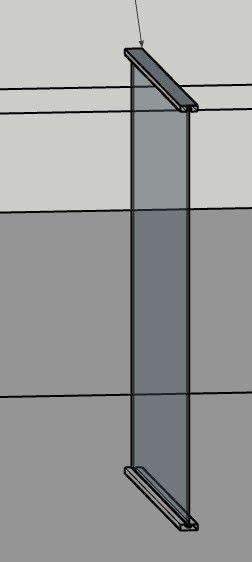
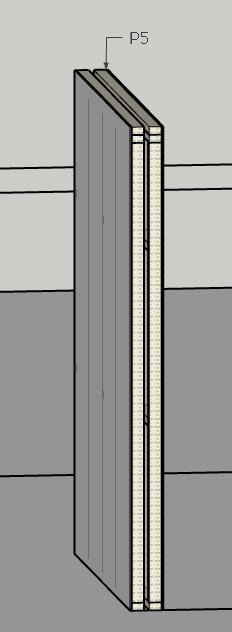
With this method you’ll have to use SketchUp tools to generate the wall geometry. You can then use the Custom Estimation Tool to apply materials to the different parts of the curtain wall so they estimate in the Takeoff Tool.

 Wall Tool & Create Multiple Similar Walls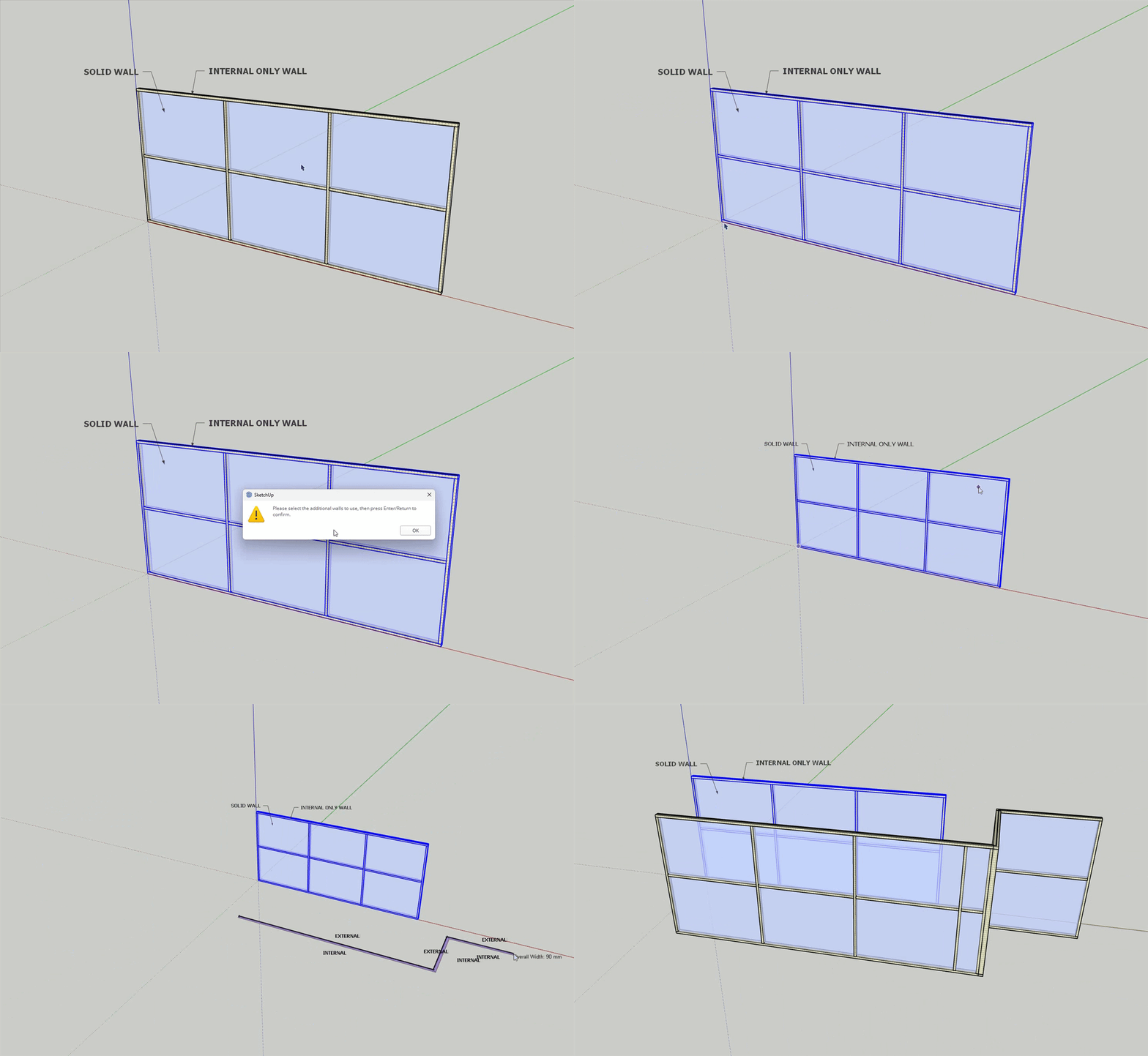
 Custom Estimation Tool to apply materials to the different parts of the curtain wall so they estimate in the
  Takeoff Tool.