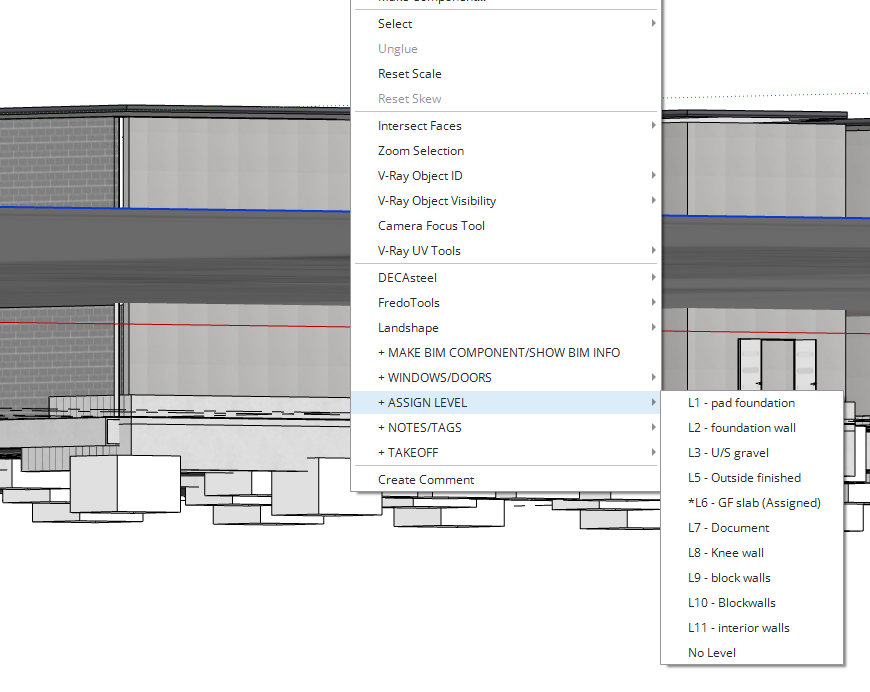
If you draw something on the wrong level, or, as in my case, import a PDF and then move it around. How do I get it to go to a specific level I already have in the levels tool? If I right-click the PDF and assign it to Ground Floor, it does not move; instead, it stays at the location where I last moved it. Am I missing a trick here?
Assigning & reassigning the level of an object via the right-click menu will only change the level it’s assigned to & not the vertical position of the geometry. The object(s) need to be manually moved to the desired height before or after assigning the level.
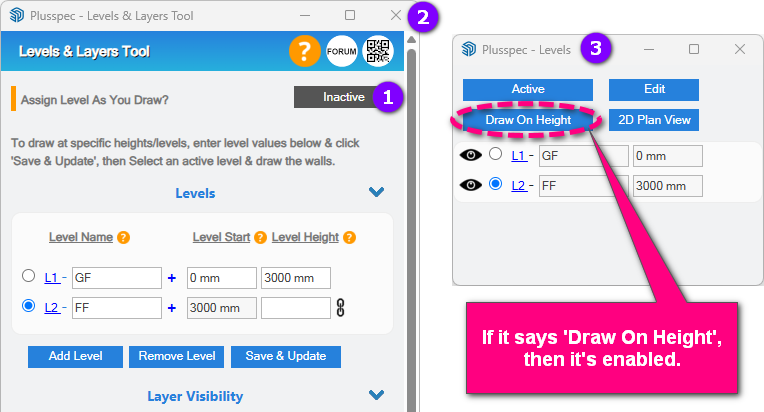
Geometry can only be drawn at a specific height when the “assign level as you draw” feature (main dialog) & the “draw on height” feature (mini dialog) are both enabled, then selecting the active level in the mini dialog, then using one of the tools (e.g. Wall Tool) to draw the geometry. Note: This is the case for most drawing tools, other tools may need to have the geometry manually moved as previously mentioned.
Yeah, I thought that was the case, but I was hoping you would tell me something different!
Would it be hard to have this function? So you could select geometry that was wrongly allocated and then fix it quickly by automatically reassiging and moving it?
I, for one, am constantly forgetting to adjust the level in the dialogue box before drawing something.
When we first developed the tool, it did exactly what you describe, Garith, and it wouldn’t be too hard to reinstate. However, there were inherent issues, but I can’t remember what they were.…
Here is a workaround that’ll achieve the same result.
You could create another level called loose geometry at the height of the un assigned geometry, then right-click that geometry and associate it. Then, you can simply change the level height and change the level back by right-clicking.
 Wall Tool) to draw the geometry. Note: This is the case for most drawing tools, other tools may need to have the geometry manually moved as previously mentioned.